Open a lot in Build/Buy mode. Press Ctrl + Shift + C on PC or Mac, or press all four shoulder buttons together on PlayStation or Xbox. Enter bb.moveobjects on, press Enter, and close the console. Move an item into place; on PC/Mac, hold Alt while placing when you want to bypass ordinary grid snapping. Test the object with a Sim before you finish the lot.
A reliable placement loop
Enable
Enter the build command once on the lot you are editing.
Place
Move one object at a time and check its height, angle, and overlap.
Test
Return to Live Mode and confirm the Sim can reach and use it.
What the Sims 4 move objects cheat changes
bb.moveobjects on relaxes placement restrictions for objects in Build/Buy. It is most useful when the default footprint rules reject a placement that looks sensible to you: a lamp close to a side table, small decor arranged on a shelf, or furniture arranged more tightly in a narrow room. It is a build command, not a money, skill, or relationship cheat.
The command does not create an object, unlock every catalog item, or make every surface compatible with every object. It also does not promise that Sims will route around a newly overlapped chair or use a decorative object that has no supported slot. Think of it as permission to try a placement, followed by your own visual and gameplay checks.
A common confusion is whether testingcheats true must come first. For this placement command, start with bb.moveobjects on itself. Only use a testing-cheat toggle when another command explicitly requires it; on console, the game may warn that some cheat use affects achievements for a save.
- Use it for tighter decor and object arrangements in Build/Buy.
- Keep object access, animation space, and walk paths in mind.
- Do not treat a successful placement preview as proof of usability.
Before you enter the command
Load the household and lot you plan to edit, then switch to Build/Buy. This makes it easy to tell which lot is changing and gives you a fast way to test the finished arrangement. If you are making a major renovation, save first or use a separate copy of the lot so you can compare the result without losing the earlier layout.
The console shortcut opens a text bar; it does not enable every cheat. Enter the build command on the lot where you intend to place objects. If the shortcut is intercepted by another app, click the game window and try again. On console, press the four shoulder buttons together rather than one after another.
The console accepts the command without quotation marks. Include the dot between bb and moveobjects, and leave one space before on. A missing dot, extra punctuation, or a command typed into the normal search field will not activate the placement behavior.
| Platform | Console shortcut | Command |
|---|---|---|
| PC / Mac | Ctrl + Shift + C | bb.moveobjects on |
| PlayStation | L1 + L2 + R1 + R2 | bb.moveobjects on |
| Xbox | LB + LT + RB + RT | bb.moveobjects on |
How to use bb.moveobjects on
Follow the sequence once, then place items as you normally would. The cheat stays useful while you continue editing the lot; you do not have to reopen the console for every object.
- 01
Open the lot in Build/Buy
Choose the lot and enter Build/Buy mode. Make a save point before a large redesign so you can restore the previous arrangement if needed.
- 02
Open the cheat console
Use the platform shortcut in the table. On keyboard, the game window needs focus. On a controller, press all four shoulder buttons together.
- 03
Enter the command
Type the exact command and press Enter. Do not add quotation marks or replace the dot with a space.
bb.moveobjects on - 04
Place and inspect
Close the bar, move the object, and look at it from more than one camera angle. Then test its route and interactions in Live Mode before saving the final layout.
Placement examples that are worth testing
For a crowded shelf, use the command to try a tighter arrangement of books, small plants, or collectibles. Keep each object visibly supported by the shelf and check that the result still reads clearly from the usual camera height. A screenshot can help you compare before and after, but the game view is the source of truth for the final placement.
In a narrow kitchen, a smaller gap between decorative items can make the counters feel intentional. Do not cover the cooker, sink, or the approach space a Sim needs to interact with them. If an object is only decorative, identify it as decor in your own planning rather than assuming it can be used because the placement preview turned green.
For a reading corner or bedroom, test a lamp or side table close to a chair. Leave enough room for a Sim to sit, stand up, and walk past. If an interaction disappears or a Sim waves as if blocked, move one item back and test again; the visual overlap is not worth a broken route.
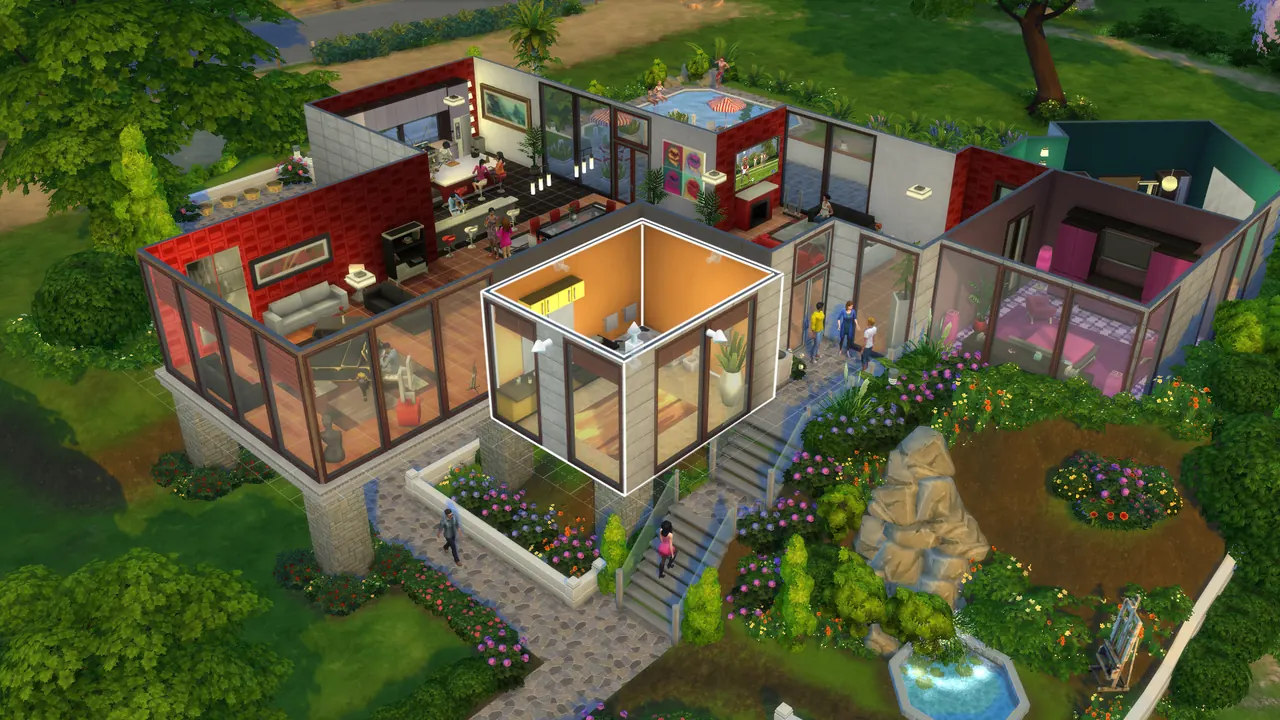
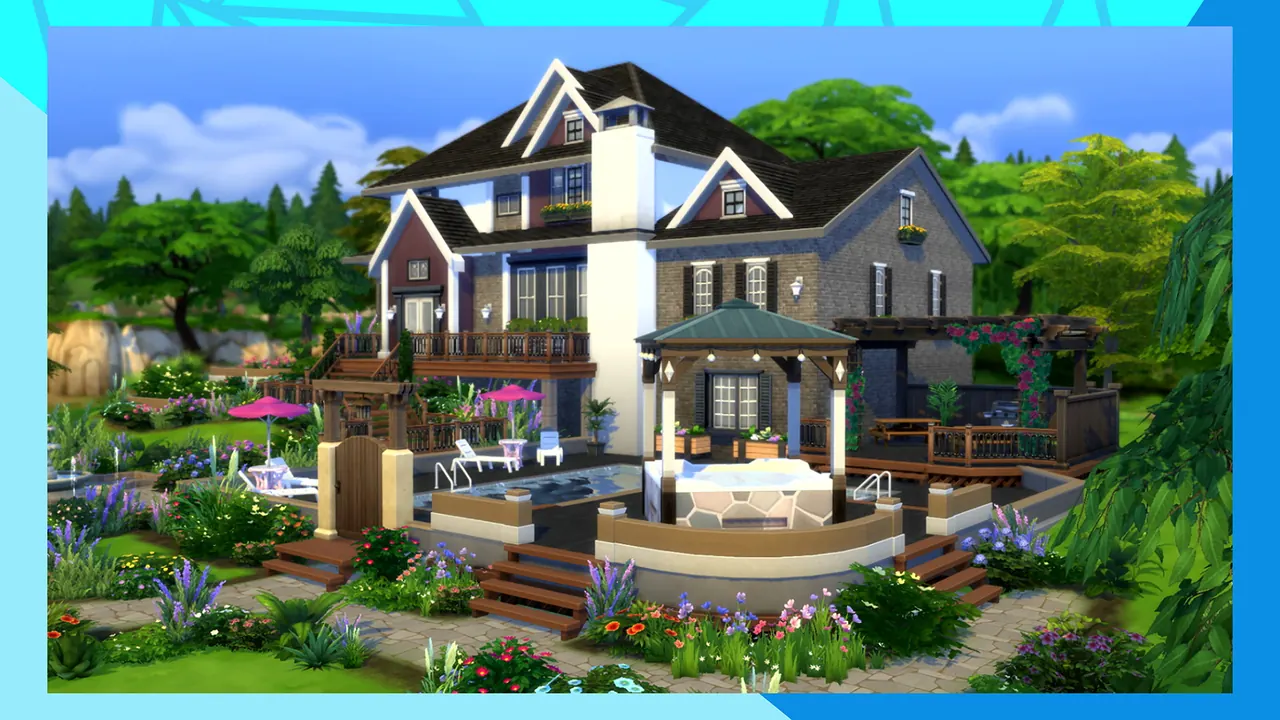
The real Steam store screenshots on this page show completed The Sims 4 builds. They provide visual context for rooms and lot layouts, but they do not show the cheat console or claim that bb.moveobjects created those exact placements.
A Sim still needs a usable route
Move objects changes the placement check, not the Sim’s pathfinding rules. An object can be positioned successfully while blocking a doorway, chair, bed access point, or the interaction point in front of a counter. A Sim may also need animation clearance that is larger than the object’s visible footprint.
Test the interaction that matters. For a chair, ask a Sim to sit. For an appliance, start its normal interaction. For a bed, check both sides if two Sims should use it. Watch for the selected Sim route line and the game’s blocked-action response; then move nearby objects until the interaction succeeds reliably.
Some objects are designed to snap to a specific surface or slot. The cheat does not convert an incompatible object into a supported one. If the item floats, clips through a wall, disappears in another camera angle, or cannot be interacted with, undo that placement and use a compatible surface or a less aggressive overlap.
- Keep doorways and the approach side of usable furniture open.
- Check object slots and wall placement from the camera angles players use.
- Re-test after moving a large object that changes a room’s path.
Grid snapping, object overlap, and free placement are different
Players often use “move objects” to mean three separate things: placing two objects closer together, positioning an item between normal grid points, and moving an item that the game considers blocked. The cheat helps with the game’s placement restrictions, but the keyboard modifier and the object’s own slot rules still matter.
On PC or Mac, holding Alt while moving an object can place it without the usual grid snapping. That is a fine-positioning aid; it is not the same as changing object compatibility or guaranteeing a working Sim route. Controller placement uses different input behavior, so rely on the visible placement preview and test the result rather than copying a keyboard gesture.
Use the comparison below to diagnose what you are trying to change. If the problem is simply that an object moves in large increments, try a finer placement gesture. If the game rejects an overlap, enable the cheat. If the object still cannot be used, adjust the layout for routing or slot compatibility.
| Goal | What to try | What it does not guarantee |
|---|---|---|
| Place closer to another object | Enter bb.moveobjects on and reposition it. | The objects may still clip or block an interaction. |
| Move between grid points (PC/Mac) | Hold Alt while placing the object. | It does not change every object’s supported surface or slot. |
| Make an object usable again | Move nearby items and test the interaction in Live Mode. | The cheat cannot make every blocked layout routable. |
How to turn the cheat off
Open the console again and enter bb.moveobjects off, then press Enter. This disables the relaxed placement behavior for later edits. It does not serve as an undo command for the room; review the existing lot after switching it off and move any item that causes a visible or routing problem.
If you are sharing the lot, test it after reloading or placing it in a fresh save when practical. That catches an item that looked acceptable during editing but blocks a routine after the lot is played. Keep the original save until you are satisfied with both the appearance and the interactions.
- 01
Disable future free placement
Open the console on the active lot and enter the off form of the command.
bb.moveobjects offThe existing layout is not a substitute for checking routes and object interactions.
Fix Sims 4 move objects cheat problems
Most problems come from the wrong input field, an inactive game window, a command typo, or an object that is visually placeable but still unusable. Change one thing at a time so you can see which check fixed it.
Nothing happens: confirm the console is open, typebb.moveobjects onexactly, and press Enter. Make sure the object is being edited in Build/Buy on the intended lot.The console will not open: focus the game window and repeat the keyboard shortcut. On console, press the four shoulder buttons simultaneously.Items still snap: on PC/Mac, hold Alt during placement to bypass normal grid snapping. The modifier is a positioning aid; it is not a separate cheat command.The item is floating or clipping: move it slightly, inspect it from another camera angle, and use a compatible surface. Do not keep a placement that looks broken from the normal play view.A Sim cannot use nearby furniture: test the exact interaction, clear the approach space, and move objects away from doors, chairs, beds, or appliances until routing works.The cheat seems to reset: reopen the console on the lot and re-enter the on form. If you changed saves or lots, confirm the command state on the current build session.
Use the command without risking a finished lot
The command is useful for decoration, but a final room should still work as a room. Keep a save point before large edits, make one placement at a time, and test an interaction before repeating the same layout across the whole lot. This reduces the time spent tracking down which object blocked the Sim.
If trophies or achievements matter on a console save, pay attention to the game’s own warning when enabling cheats. This guide does not ask you to enable testingcheats true for the move objects command. When the game warns that a separate cheat will affect a save, use a backup or a different save if you want to preserve its status.
Sims 4 move objects cheat FAQ
What is the Sims 4 move objects cheat?
The command is bb.moveobjects on. Enter it in the cheat console while editing the lot to relax normal object placement restrictions in Build/Buy.
Do I need testingcheats true before bb.moveobjects?
No. Start with bb.moveobjects on for this build command. Use testingcheats true only when a different command requires it, and read the game’s warning before enabling it on a console save.
How do I use the move objects cheat on PC or Mac?
Open Build/Buy, press Ctrl + Shift + C, enter bb.moveobjects on, press Enter, and close the console. Hold Alt while moving an item if you also want to bypass ordinary grid snapping.
Does bb.moveobjects work on PlayStation and Xbox?
The command can be entered from the console cheat bar. Open it by pressing all four shoulder buttons together, then type the same command. Follow the on-screen controller prompt if your platform layout differs.
Why can’t my Sim use an object after I move it?
The placement cheat does not rewrite object slots or routing. Move nearby items, clear the approach space, and test the interaction in Live Mode. Some arrangements are decorative only.
How do I turn off the Sims 4 move objects cheat?
Open the console and enter bb.moveobjects off. Then inspect existing placements and test routes; turning the command off is not an undo for the whole lot.
Why do objects still snap to the grid?
On PC or Mac, hold Alt while moving the object to place it between normal grid points. Grid snapping and object overlap are related but different placement behaviors.
The short version
Use bb.moveobjects on to try tighter object arrangements, and bb.moveobjects off when you want normal placement rules again. You do not need to enable the testing-cheat layer for this command.
A successful placement is only the first check. Inspect the build from the player camera, keep access clear, and test the objects that Sims need to use. The build cheats index has the command list; this guide covers the placement workflow.
Image source and scope
The two game images are official screenshots served through The Sims 4 Steam store listing. They show real game builds for visual context; neither image is represented as a capture of bb.moveobjects in use. The command guidance is an independent reference and should be rechecked after relevant game changes.
The Sims 4 official Steam store page